
Using Your Mobile or Web Phone at Home Over Wi-Fi: A Complete Guide

In today’s hybrid work environment, staying connected is more important than ever. Whether you’re working remotely or simply prefer using your business phone from home, Wi-Fi calling is a game-changer. This guide will walk you through how to use your mobile or web phone at home over Wi-Fi, ensuring seamless communication without relying on cellular networks.
Why Use Wi-Fi Calling?
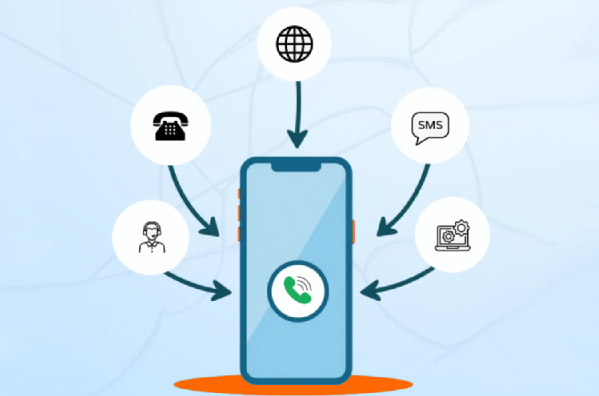
Wi-Fi calling allows you to make and receive calls using a wireless internet connection instead of a cellular network. Benefits include:
✔ Better Coverage – Ideal for areas with weak cellular reception.
✔ Cost Savings – Reduce reliance on mobile minutes, especially for international calls.
✔ Seamless Connectivity – Stay connected even if your cellular signal drops.
✔ Flexibility – Use your business number from any device with internet access.
How to Set Up Wi-Fi Calling on Your Mobile Phone
Most modern smartphones support Wi-Fi calling. Here’s how to enable it:
For iPhone Users:
-
Go to Settings > Phone > Wi-Fi Calling.
-
Toggle on “Wi-Fi Calling on This iPhone.”
-
Follow the prompts to confirm your emergency address (required for 911 calls).
For Android Users:
-
Open Settings > Connections > Wi-Fi Calling.
-
Enable “Wi-Fi Calling” (may vary slightly by manufacturer).
-
Verify your emergency address if prompted.
Once activated, your phone will automatically switch to Wi-Fi calling when connected to a stable network.
Using a Web Phone (Softphone) Over Wi-Fi
A softphone (like Microsoft Teams, Zoom Phone, or Cisco Jabber) lets you make calls directly from your computer or tablet. Here’s how to use it:
-
Download the App – Install your company’s preferred softphone application.
-
Log In – Use your business credentials to access your phone system.
-
Connect to Wi-Fi – Ensure a strong internet connection for optimal call quality.
-
Start Calling – Use the app’s dialer to make and receive calls just like a desk phone.
Tips for Best Performance
-
Use a 5GHz Wi-Fi band for better call quality (less interference than 2.4GHz).
-
Avoid bandwidth-heavy activities (like streaming) during important calls.
-
Consider a Wi-Fi extender if your signal is weak in certain areas.
Wi-Fi Calling vs. VoIP: What’s the Difference?
While both use the internet for calls, they differ slightly:
-
Wi-Fi Calling – Extends your mobile carrier service over Wi-Fi.
-
VoIP (Voice over IP) – Uses apps (like Zoom or Teams) to make calls without a carrier.
For businesses, cloud telephony solutions (like those from UCeasy) combine the best of both, offering flexibility and professional features like call forwarding, voicemail-to-email, and auto-attendants.
Final Thoughts
Wi-Fi calling and softphones make it easier than ever to stay connected from anywhere. Whether you’re using your mobile or a web-based phone, a strong Wi-Fi connection ensures crystal-clear calls without relying on cellular networks.
Need a reliable business phone solution for remote work? Explore UCeasy’s cloud telephony services today!
✅ Book a demo now!
Share This Story, Choose Your Platform!
Let’s Make Things Happen
Join the UCeasy revolution today. Simplify your services. Grow your business. Make Unified Communications easy!
As a UCeasy reseller, you’ll enjoy a streamlined onboarding experience that quickly prepares you to sell our solutions. This comprehensive process covers essential areas like quoting, billing, technical support, branding, and effective sales techniques.